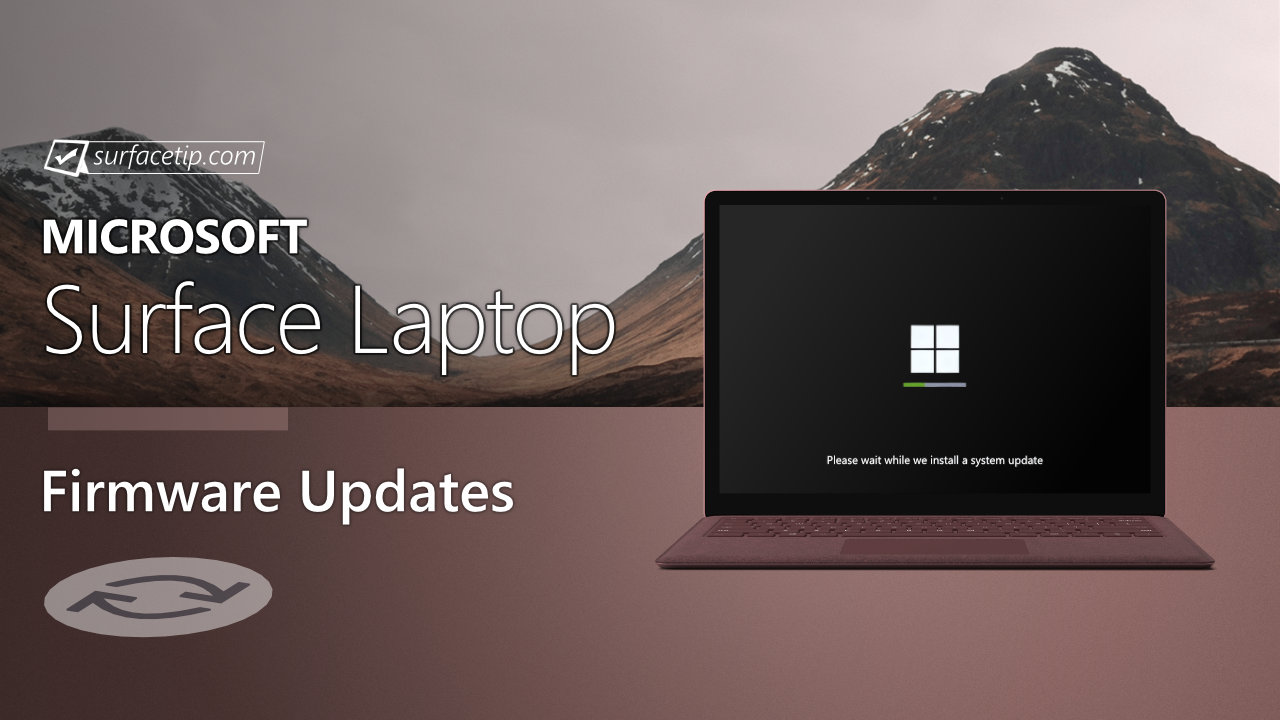
The new firmware update 15.68.9127.58 improves system security. The update is listed as a “May 16 release” on the Surface Laptop Update History page.
Changelog for May 16, 2019 Updates
Below is the complete changelog provided by Microsoft for the new updates. It includes the name and version listed in the Windows Updates and the name listed in Device Manager.
| Windows Update History Name | Device Manager Name |
|---|---|
| Marvell Semiconductor, Inc. – Bluetooth – 15.68.9127.58 | Marvell AVASTAR Bluetooth Radio Adapter – Bluetooth 15.68.9127.58 improves system security. |
| Intel – Camera – 30.15063.6.8611 | Intel(R) AVStream Camera 2500 – Camera 30.15063.6.8611 improves camera performance. |
| Intel Corporation – Display – 25.20.100.6472 | Intel(R) HD Graphics 620 – Display adapters 25.20.100.6472 improves system stability and performance, when resuming from sleep. |
| Marvell Semiconductor, Inc. – Net -15.68.9127.58 | Marvell AVASTAR Wireless-AC Network Controller – Network adapters 15.68.9127.58 improves system security. |
| Intel Corporation – System – 30.15063.6.8611 | Intel(R) Control Logic – System devices 30.15063.6.8611 improves camera performance. |
| Intel Corporation – System – 30.15063.6.8611 | Microsoft Camera Front– System devices 30.15063.6.8611 improves camera performance. |
| Intel Corporation – System – 30.15063.6.8611 | Microsoft IR Camera Front– System devices 30.15063.6.8611 improves camera performance. |
| Intel Corporation – System – 30.15063.6.8611 | Intel(R) CIO2 Host Controller – System devices 30.15063.6.8611 improves camera performance. |
| Intel – System – 30.15063.6.8611 | Intel(R) Imaging Signal Processor 2500 – System devices 30.15063.6.8611 improves camera performance. |
| Surface – System – 4.0.0.0 | Surface System Telemetry – System 4.0.0.0 resolves an error code in Device Manager under Surface System Telemetry. |
Getting the Updates via Windows Update
You can get this new Firmware Update via Windows Updates, as we detailed here:- On Windows 11, go to Start > Settings (Win + I) > Windows Update and click the "Check for updates" button.
- On Windows 10, go to Start > Settings > Update & security and click the "Check for updates" button.
Downloading the Updates from Microsoft
Alternatively, you can download the latest cumulative driver and firmware update for Surface Laptop from Microsoft Download Center via the following links.
- Surface Laptop Drivers and Firmware
https://www.microsoft.com/en-us/download/details.aspx?id=55489
Surface Laptop Update History
 Support for Windows 10 ended on October 14, 2025, microsoft is no longer providing free software updates from Windows Update, technical assistance, or security fixes for Windows 10. Your PC will still work, but we recommend moving to Windows 11, and learn more.View
- How to get updates, improvements and fixes in the updates, and additional steps for Surface Laptop (1st Gen).View
- 137.2706.768.0 resolves potential security vulnerabilities, including Microsoft security advisory 190013.View
- 15.68.9127.58 improves system security.
- 3.0.10.1 ensures reliability of Pen top button click on Surface Pen with no clip-on Windows 10 October 10 2018 Update, version 1809.Use the Surface Pen Checker Tool to verify that the Pen’s firmware was successfully updated.View
- 3.0.10.1 resolves intermittent pen top button click failure on Surface Pen with no clip on Windows 10 October 2018 Update, version 1809.Use the Surface Pen Checker Tool to verify that the Pen’s firmware was successfully updated.View
- 10.25.0.10 resolves battery consumption issue associated with Windows 10 October update (version 1809)View
- 136.1932.789.0 resolves potential security vulnerabilities, including Microsoft security advisory 180002.View


COMMENTS
Let us know what you think!
We appreciate hearing your thoughts, questions, and ideas about “Surface Laptop recieves new (May 16, 2019) firmware updates”.