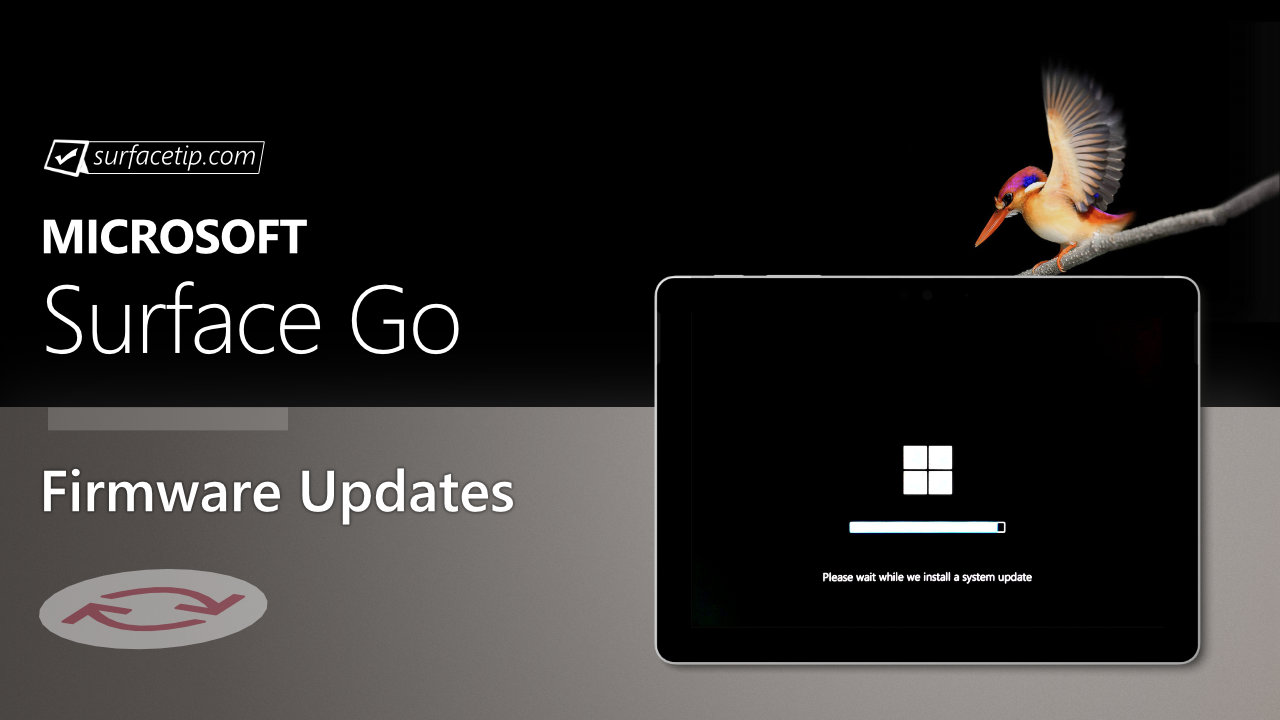
The new firmware update will 3.0.10.1 resolves intermittent pen top button click failure on Surface Pen with no clip, post Windows 10 October 2018 Update.
Use the Surface Pen Checker Tool to verify that the Pen’s firmware was successfully updated. The update is listed as a “November 9 release” on the Surface Go Update History page.
Changelog for November 09, 2018 Updates
Below is the complete changelog provided by Microsoft for the new updates. It includes the name and version listed in the Windows Updates and the name listed in Device Manager.
| Windows Update History Name | Device Manager Name |
|---|---|
| Surface – System – 3.0.10.1 | Surface Pen Firmware Update – System devices 3.0.10.1 resolves intermittent pen top button click failure on Surface Pen with no clip, post Windows 10 October 2018 Update. Use the Surface Pen Checker Tool to verify that the Pen’s firmware was successfully updated. |
| Surface – HIDClass – 1.0.9.0 | Surface Pen Integration Device – Human Interface Devices 1.0.9.0 enables firmware update to Surface Pen with no clip. |
| Surface – Firmware – 1.0.10 | Surface UEFI – Firmware 1.0.10.0 improves system security and stability and ensures display of the On-Screen Keyboard during BitLocker unlock prompts at boot. |
| Surface – System – 4.0.11.0 | Surface CIF Device – System devices 4.0.11.0 improves compatibility with Windows 10 S mode. |
| Qualcomm Atheros Communications – Bluetooth – 10.0.0.709 | Qualcomm Atheros Bluetooth 4.1 – Bluetooth 10.0.0.709 improves wireless security and adds support for Bluetooth quick pairing. |
| Qualcomm Atheros Communications – Net – 12.0.0.722 | Qualcomm Atheros Wireless Network Adapter– Network adapters 12.0.0.722 improves wireless security and Miracast support. |
| Realtek Semiconductor Corp. – Firmware – 1.0.13 | Surface Power Delivery – Firmware 1.0.13.0 improves external monitor display compatibility with some USB-C to HDMI adapters. |
Getting the Updates via Windows Update
You can get this new Firmware Update via Windows Updates, as we detailed here:- On Windows 11, go to Start > Settings (Win + I) > Windows Update and click the "Check for updates" button.
- On Windows 10, go to Start > Settings > Update & security and click the "Check for updates" button.
Downloading the Updates from Microsoft
Alternatively, you can download the latest cumulative driver and firmware update for Surface Go from Microsoft Download Center via the following links.
- Surface Go WiFi
- Surface Go with LTE
Surface Go Update History
 Device driver and firmware servicing period has ended, this device is no longer within its driver and firmware servicing period and will no longer receive new updates. However, previously released updates will remain available for download, to stay current with the latest performance, battery life, and AI-powered experiences, explore the newest Surface PCs—created with the signature Surface design and built for modern productivity, and explore the newest Surface PCs.View
- Improves device connectivity, and fixes a flickering or screen flashing issue when the device is connected to Surface Dock 2.View
- Improve battery Smart Charging reliability, camera experience, and Surface Dock 2 reliability, and facilitates power and thermal-related data analysis.View
- Resolves intermittent Pen top button click failure on Surface Pen with no clip, post Windows 10 October 2018 Update.Use the Surface Pen Checker Tool to verify that the Pen’s firmware was successfully updated.View
- 3.0.10.1 resolves intermittent pen top button click failure on Surface Pen with no clip, post Windows 10 October 2018 Update.Use the Surface Pen Checker Tool to verify that the Pen’s firmware was successfully updated.
- Improves display calibration addressing incorrect power setting behaviors associated with Windows 10 October 2018 Update.View


COMMENTS
Let us know what you think!
We appreciate hearing your thoughts, questions, and ideas about “Microsoft rolled out new firmware updates (November 09, 2018) for Surface Go”.